
· 6 min read
Google Keeps Asking Me to Verify It's You: Why and How to Stop It
You know your password, but Google keeps stopping you with "Verify it's you". Here is why it happens, how to get through it today and how to make it stop happening every time you sign in.
Jump to section
You type the right password, and Google still stops you with “Verify it’s you”. Sometimes it happens once on a new phone. For some people it happens every single time they sign in, or it blocks them from changing their password for days. It comes up on Reddit all the time, so here is what I tell people.
This guide is for when you can still get as far as the password but Google wants more. If you can’t get in at all, my locked out of Google guide covers that.
Short answer: Google asks you to verify when something about the sign in looks new to it: a new device, a new place, a VPN or a browser that has forgotten you. To get through and stop it coming back:
- Use a device you have signed in on before, on your home Wi Fi, with any VPN off.
- Choose Try another way if the first option asks for something you don’t have.
- Stop your browser clearing Google’s cookies when it closes, and tick to stay signed in.
- Add a passkey, so verifying is one tap or a fingerprint instead of a code.
Why Google Asks You to Verify
Google looks at every sign in and compares it with what it knows about you. If something doesn’t match, it asks for proof as well as your password. That is what stops someone who has bought your password from a data breach getting straight in. The trouble is that plenty of normal things look new to Google:
| What changed | Why Google notices | What helps |
|---|---|---|
| A new phone, tablet or computer | Google has never seen it before | Sign in once and keep it signed in |
| A VPN, or travelling abroad | You appear to be somewhere new, sometimes a different country each day | Turn the VPN off to sign in, or pick the same server each time |
| Your browser clears cookies or history when it closes | Google forgets the device each time, so every sign in looks like the first | Allow cookies for google.com |
| Private or Incognito windows | Nothing is remembered once the window closes | Use a normal window for Google |
| Changing your password or recovery details | Google wants extra proof before anything important changes | Do it from your oldest signed in device |
| Someone else trying your password | Google spotted a sign in that wasn’t you | Say no, then change your password |
How to Get Through It Today
When the Verify it’s you screen appears, Google offers one way first, usually a prompt on your phone. That isn’t the only option.
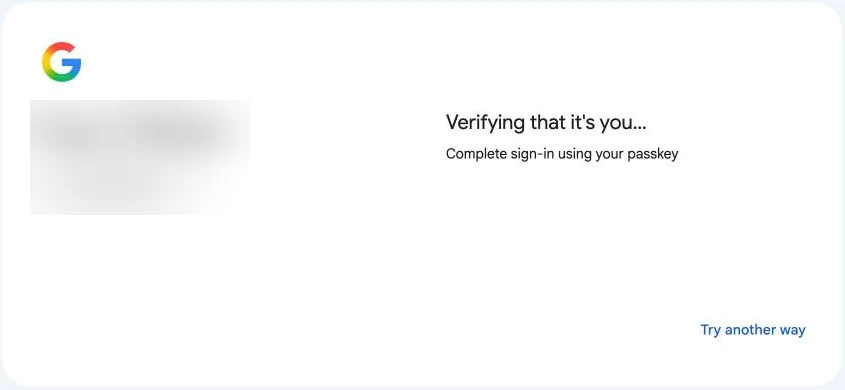
- Check your phone for a Google prompt. On an Android phone or the Gmail or Google app on an iPhone, you may see “Trying to sign in?”. Tap Yes, it’s me, and tap the matching number if it asks for one.
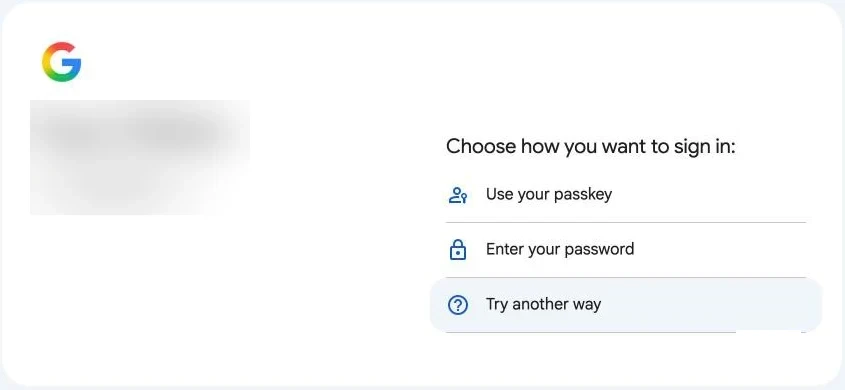
- Choose Try another way if the prompt doesn’t arrive. Depending on what you have set up, you can get a text or call to your recovery number, a code from an authenticator app, a code sent to your recovery email, a passkey or one of your backup codes.
- Use a backup code if you saved them. Each one works once, and they are the reason I tell everyone to print them.
- Don’t keep retrying. If it says no, stop and come back later from a device you know Google has seen before. Lots of failed tries in a row make Google more suspicious, not less.
If you didn’t try to sign in: when a “Trying to sign in?” prompt arrives out of the blue, tap No, it’s not me. It means someone has your password. Change it straight away at myaccount.google.com/security and check the list of signed in devices there.
When It Won’t Let You Change Your Password
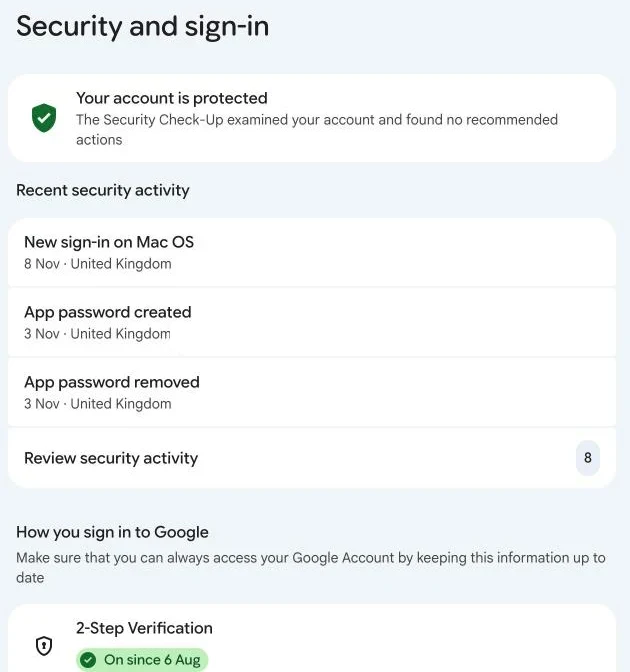
Another very common one. You sign in on a new phone, go to change your password or recovery number, and Google says it can’t verify you, even though you’re signed in. This is a deliberate safety check. If a thief grabs an unlocked phone, Google doesn’t want them changing the password and locking the real owner out.
The fix is to make the change from a device that has been signed in for a long time, such as your old laptop or a tablet at home. If the new phone is the only device you have, keep using it normally and try again in a few days. Trying every hour tends to keep the block in place.
How to Make It Stop Coming Back
If Google asks you to verify every time you sign in, something is making it forget you. These are the things I would check, in this order.
- Your browser’s clear on close setting. Chrome, Firefox, Safari and Brave all have an option to delete cookies when you close them. That is a fine privacy choice, but it wipes the cookie that tells Google it knows this device. Add google.com and accounts.google.com as sites that are always allowed to keep cookies.
- Privacy extensions. Some cookie cleaners and tracker blockers remove Google’s sign in cookies too. Try signing in with them paused and see if it stops.
- Your VPN. A VPN that jumps between servers makes you look like you’re in a new place every day. Pick one server for when you use Google, or allow Google to bypass the VPN if your app has a split tunnelling option.
- Stay signed in. If you see a “Don’t ask again on this device” or similar option when you verify, tick it on your own devices only.
- Add a passkey. At myaccount.google.com, under Security, add a passkey on your phone and computer. Verifying then becomes your fingerprint, face or screen lock, with no codes to wait for.
- Keep your recovery details current. A recovery phone number and email you still use mean Try another way always has somewhere to send a code.
Email Apps That Keep Asking
If you read Gmail in Apple Mail, Outlook or Thunderbird and it keeps asking you to sign in again, the usual cause is an old setup that used your password directly. Remove the account from the app and add it back, choosing Google as the account type so you sign in on Google’s own page. If your app is too old to do that, it may need an app password, which you can only create once two step verification is on.
Frequently Asked Questions
Is the Verify it’s you screen a scam?
Not when it appears on accounts.google.com after you sign in yourself. Be wary of any email or text saying you need to verify your Google account with a link. Go to myaccount.google.com yourself instead.
How long does Google keep asking on a new device?
Google doesn’t say. In my experience it settles down within a few days of using the device normally, as long as the browser keeps its cookies.
I don’t have my old phone number any more. What now?
Use Try another way and pick an option that doesn’t need it, such as a backup code or your recovery email. Once you’re in, change the recovery number straight away. If none of the options work, the locked out guide has the next steps.
Does turning off two step verification stop it?
No, and I wouldn’t. Google can ask you to verify a new device even without it, and the account is far easier to take over. A passkey is the better way to make it painless.
The Bottom Line
Verify it’s you is Google trying to keep someone else out, and most of the time it only appears when something about your sign in looks new. If it happens every time, the cause is nearly always a browser that forgets you or a VPN that moves you around. Fix that, add a passkey and save your backup codes, and it should become a rare one tap check.
Sources: Google: fix common issues with 2-Step Verification, Google: sign in with Google prompts, Google: sign in with a passkey, Google: avoid getting locked out.
Note: This guide contains no affiliate links. Google changes its sign in screens often, so the exact wording you see may differ.

Paul O'Brien
I've spent over 25 years working hands-on with email, DNS and cloud infrastructure. I test email providers and privacy tools for real, then tell you what they're good at and where they fall short.
More about meMore like this


You're subscribed. New articles come by email, as I publish or every Thursday. Change how often
Comments