
· 3 min read
How to Switch Email Provider Without Losing Anything
The order to do things in, so you keep your old mail, contacts and address.
Jump to section
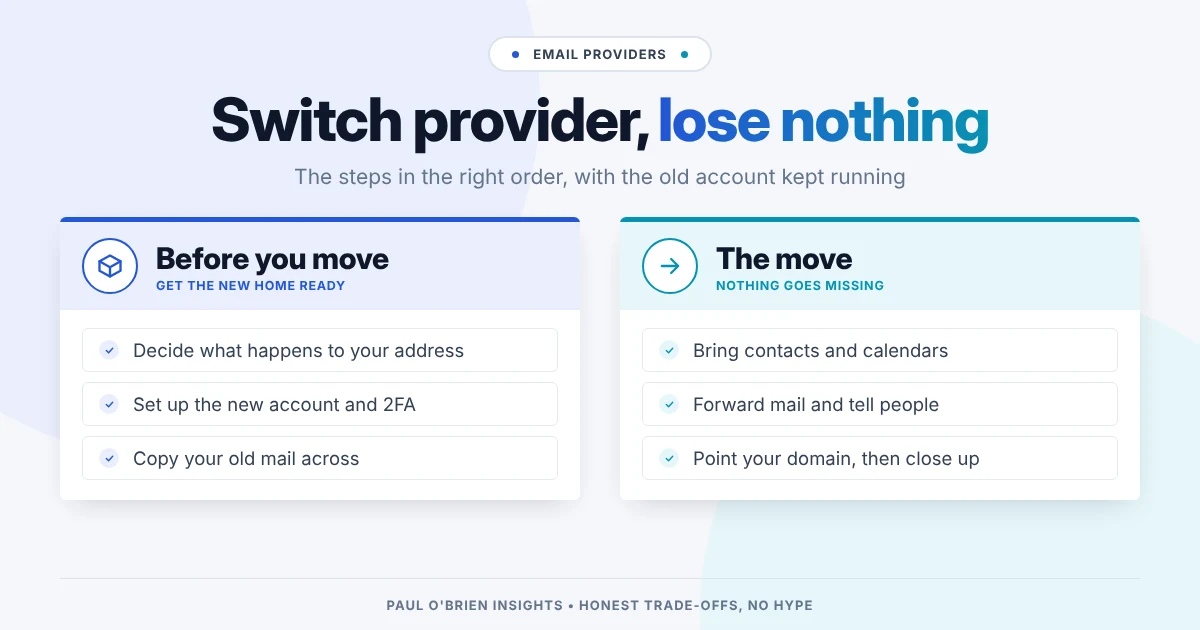
Switching email provider is far less daunting than it appears, and you don't need to lose a single message. The secret lies in doing things in the correct sequence, and keeping your old account ticking over in the background for a while.
Need specific instructions? Select your current and new providers, and I'll walk you through the move step by step, including direct links to each service's official documentation.
1. Decide What Happens to Your Address
This is the most critical decision:
- Generic addresses (
@gmail.com,@outlook.com,@icloud.com): The domain belongs to the provider, meaning you cannot take the address with you. You will need to forward your incoming mail to your new address and notify your contacts. - Custom domains (
you@yourname.co.uk): You own the address. You simply point your domain's DNS records to the new provider; nobody sending you mail will notice the transition. If you are changing provider anyway, now is the ideal time to register a custom domain so you never have to change your address again. (See my guide to email providers for custom domains.)
2. Set Up the New Account First
Create your new account before touching the old one, and immediately enable two-factor authentication (2FA).
Before committing, verify that your new plan's storage quota exceeds your current mailbox size. It is also worth checking their policies on exporting data, account cancellation and refunds. Each provider review on this site details these under "Before you sign up".
3. Migrate Your Old Mail
Copying messages never deletes them from your source account, making the process safe to test. There are three primary routes:
- Integrated cloud importers (Easiest): Providers such as Proton Mail, Fastmail, Posteo and Zoho Mail offer built-in migration tools. Sign in with your old credentials, and they will pull in your folders and mail automatically in the background.
- File export and import: Download your archive directly from the source provider (e.g., Google Takeout) as an
.mboxor.emlfile, then upload it into your new provider's interface. - Desktop email client (Universal fallback): Connect both accounts to a desktop client like Mozilla Thunderbird via IMAP, then drag and drop folders from the old account into the new one. It takes time, but it works across almost every service.
Encrypted mail note: End-to-end encrypted services like Proton Mail and Tuta store mail in unreadable formats on their servers, meaning standard third-party cloud importers cannot crawl them. Moving mail in or out of these platforms requires their dedicated desktop export/import utilities.
4. Transfer Contacts and Calendars
Cloud importers often migrate mail while leaving address books behind:
- Contacts: Export as a
.vcf(vCard) file from your old webmail, then import it into the new account. - Calendars: Export as an
.ics(iCalendar) file and upload it into your new calendar settings.
5. Forward New Mail and Notify Key Contacts
To ensure seamless continuity:
- Set up automatic forwarding: Turn on server-side forwarding in your old account so newly arriving messages route straight to your new inbox.
- Broadcast the change: Email your key contacts from your new address and update your outgoing email signature.
- Update account logins: Work through your password manager's saved logins to switch your registered email for banking, utilities, government portals, social media and subscription services.
6. Cut Over Your Custom Domain (If Applicable)
Once your historic mail is fully copied over, log in to your DNS registrar or DNS host:
- Update your MX records to direct incoming mail to your new host.
- Update your SPF TXT record to authorise the new server.
- Add the new provider's DKIM and DMARC records.
Tip: Lower your DNS records' Time to Live (TTL) to 300 seconds (5 minutes) twenty-four hours before switching; this ensures DNS caches clear rapidly worldwide.
7. Monitor and Eventually Close the Old Account
Keep the old account active for at least one to two months until incoming forwarded mail drops to zero.
If it is a free account, you can keep forwarding enabled indefinitely. Just remember to log in directly via webmail occasionally:
- Google reserves the right to delete personal accounts after two years of inactivity.
- Microsoft deactivates and wipes an
Outlook.commailbox after one year without a webmail sign-in.
Before cancelling a paid account, always download one final, complete local backup of your mailbox.
Common Pitfalls to Avoid
- Closing the old account too early: Lingering newsletters, occasional invoices and overlooked acquaintances will attempt to email your old address for months.
- Pointing your domain before importing old mail: Switching MX records first means new messages start landing in a clean, empty inbox, making it far harder to spot discrepancies during migration.
- Running concurrent imports: Never start two automated import tools at the same time; you will almost certainly end up with duplicated folders and messages.
- Overlooking two-factor authentication recovery: Always ensure your 2FA backup codes and password reset mechanisms are updated before relinquishing access to an old email address.
Kept up to date alongside my email provider directory.

Paul O'Brien
I've spent over 25 years working hands-on with email, DNS and cloud infrastructure. I test email providers and privacy tools for real, then tell you what they're good at and where they fall short.
More about meMore like this
You're subscribed. New articles come straight to your inbox. Your email settings
Comments